Quickly resolve LED screen flickering issues
Has your LED screen ever shown flickering while running on control systems such as Colorlight, Novastar, Linsn, or Huidu? LED screen flickering is one of the most common visible issues that affect LED walls, LED signage, TVs, monitors, and large-format LED displays.
It can indicate improper configuration, insufficient power supply, data transmission instability, module failures, or deeper hardware-related issues.
How to troubleshoot LED screen flickering? When we have such a problem, what are the things we must figure out, and what are the methods for us to solve it? If you do not get the answer in your mind now, just follow me to find the clues to deal with them quickly and precisely.
1. What Is LED Screen Flickering?
LED screen flickering refers to the visible oscillation, flashing, or instability in brightness or image output on an LED display. It may appear as:
- Fast horizontal or vertical flashing lines
- Brightness pulsing
- Entire screen flashing on and off
- Partial module flicker
- Rolling bars captured on camera
- Ghosting or unstable grayscale levels

Flickering can be constant or intermittent. It may affect the entire screen or only specific modules, receiving cards, or cabinets.
The LED screen flickering problem may manifest differently depending on whether LED screen is an indoor LED screen, outdoor LED billboard, LED poster, stage rental LED panel, or LED control system.
Regardless of form, LED display flickering indicates that the LED screen system, including power, data, configuration, modules, cables, or software, is not functioning properly.
2. Is LED Screen Flickering Dangerous?
While LED screen flickering is not always dangerous on its own, the underlying causes might be. If ignored, the root problem can lead to:
● Potential Hardware Damage:
Flickering often indicates an unstable power supply or failing driver ICs. If not fixed, these issues may lead to overheated power supplies, burnt modules, or damaged receiving cards.
● Short-Circuit Risks:
Loose wiring, moisture, or poor connections can cause intermittent flicker, which may eventually develop into electrical shorts, especially in outdoor or humid environments.
● Unexpected Blackouts:
A flickering screen may suddenly fail, causing downtime for advertising screens, stage LED walls, or control-room displays.
● Reduced Lifespan:
Continuous flickering stresses LED modules and electronic components, accelerating aging and reducing overall screen lifespan.
● Operational Impact:
For commercial use, flickering lowers image quality, affects viewer experience, and may harm brand credibility.
In short, while flicker itself is not inherently dangerous, it is a warning sign that requires prompt inspection and repair.
3. Understanding the LED Screen System
To fully diagnose and resolve LED screen flickering, it’s essential to understand how the LED display system functions as a whole.
An LED screen is not a single device, it is a complex, interconnected system made up of multiple components that must operate in perfect synchronization to produce a stable image. When any part becomes unstable, flickering or flashing can occur.
The following is a standard LED screen structure diagram:

A standard LED screen system including:
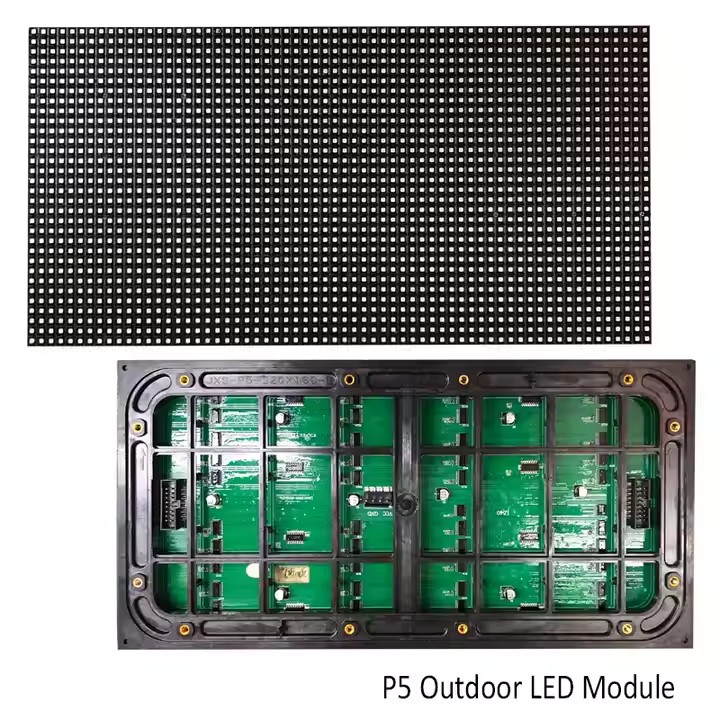
① LED Modules
LED display modules are the basic building blocks of the display. Each module contains LEDs, driver ICs, and PCB circuits that are responsible for generating light and controlling grayscale. Faulty modules or driver ICs are a common source of partial flicker.
② Receiving Cards
Receiving cards distribute video data to LED modules. Incorrect configuration, loose connections, or damaged cards can cause random flashing, data loss, or unstable images.
③ Sending Card / Controller
The sending card or LED controller receives video input from a computer or media player and sends processed image data to all receiving cards. If settings such as resolution, scan mode, or refresh rate are incorrect, flickering may appear.

④ Power Supply System
LED displays rely on stable power. Each module and receiving card requires a consistent voltage. Weak power supplies, voltage drops, and overloaded circuits often result in screen flickering or brightness pulsing.
⑤ Communication Cables
Flat ribbon cables, network cables, and cabinet-to-cabinet connectors transmit data and power across the system. Loose or damaged cables can lead to intermittent flicker, image tearing, or partial display failure.
⑥ Control Software
Software platforms such as Colorlight, Novastar, Linsn, and Huidu provide the configuration framework. Incorrect parameters, like scan rate, load area, or module type, can cause visible flicker even when the hardware is functional.
Understanding how these components work together makes it easier to identify where LED screen flickering originates.
4. Top 5 Causes of LED Display Flickering
LED display screen flickering is a common issue that can affect display quality, viewer experience, and even long-term performance.
Understanding the causes is the key to fixing flickering LED screens quickly. Below are the most common top 5 reasons caused to the LED screen flickering issue:
| Cause | Description |
| (1) Incorrect Driver or Loading Program | An incompatible or incorrect LED screen driver can result in abnormal display behavior like flickering, ghosting, or image distortion. |
| (2) Network Cable Problems | If the Ethernet cable between the control computer and the screen is too long or faulty (e.g., loose RJ45 connector), it can cause weak or unstable signal transmission, leading to flickering. |
| (3) Faulty Sending Card or Control Card | Check if the indicator lights on the sending or control card are on. If not, the card may be damaged and should be replaced. |
| (4) Short Circuit Between Power Supply and Control Card | Improper wiring or a shorted connection between the power supply and control card may disrupt normal operation. |
| (5) Unstable or Overloaded Power Supply | If a single power supply is overloaded with too many LED modules or provides unstable voltage/current, the screen may flicker or fail to respond. |
Common Causes & Solutions of LED Screen Flickering
- Power Supply Problem
Cause: Unstable power supply or voltage fluctuations may cause the LED screen to flicker.
Solution: Use a stable power supply to ensure a stable voltage. Consider adding a UPS or voltage stabilizer for continuous and reliable power delivery.
- Control Card or Drive Circuit Failure
Cause: A malfunctioning control card, damaged drive circuit, or incorrect configuration may trigger flickering.
Solution: Ensure the control card is connected properly and verify the drive circuit is undamaged. Restart the system and reconfigure the settings to match the LED display specifications.
- Software or Setting Problem
Cause: Incorrect software settings or a mismatched refresh rate between the content and the LED screen can lead to flickering.
Solution: Adjust the software refresh rate to match the LED screen. In most cases, the refresh rate should be above 50Hz to prevent visible flicker.
- LED Module or Circuit Failure
Cause: Faulty LED modules or damaged internal circuits may create brightness instability or flickering patches.
Solution: Inspect all modules and circuits to ensure proper operation. Replace or repair any defective components promptly.
- Environmental Factors
Cause: Extreme temperature, humidity, or harsh environmental conditions can interfere with LED performance and cause flickering.
Solution: Maintain an appropriate operating environment. Avoid high-temperature or high-humidity conditions. For outdoor screens, use displays with proper weatherproof protection.
5. How to Figure out LED Screen Flickering?
Once you understand the potential causes of LED screen flickering, the first thing we need to do is locate the issue, just like when we face any other issues.
For this part, we have two very useful functions that can be achieved by the Novastar control system – screen control and test tool. With these two assistants, we can locate the problem within several steps.
5.1 Screen Control
As we mentioned above, there are two methods to target the problem, and we will start with screen control.
For screen control, we have two different ways – operate it on the software interface, or the LCD monitor on the controller. Now, let us discuss how to achieve them.

You may already be familiar with the interface of Novastar software. Before you click the screen control, please log in. Next, we will go to this page:

Here, we can choose the self-test mode and send different test patterns to our LED display screens.
For example, we can choose pure colors such as red, green, blue, and white, or some patterns such as horizontal lights and vertical lights.
This is from the software level; next, we will turn to the LCD monitor on the controller.
There will be a corresponding knob on the LED controller. Just rotate it, you can get information like below:

Just like what we said before, through the display control, we can achieve different testing image patterns.
If we send the image patterns to the flickering LED screen, the problem disappears; then the issues may happen on the sending card or video source. But if the problem still exists, we can turn to the receiving card side to find more information.
5.2 Test Tool
Under this condition, the image pattern comes from the control PC; thus, please make sure the control cable and video source cable between the PC and the controller are well-connected.
There are four tabs on the test tool interface. We will discuss them one by one.

First, the window interface. Generally speaking, we will set the values of X and Y as 0, and the width and height to just like the actual size of our LED screens. This is to make sure the display can show the entire image.
Then, we turn to the pure color and gradual change. These two features are as same as the screen control.
Third, grid function. This function can check whether the screen is pixel-by-pixel displaying.
For example, you can send a grid picture to the screen like horizontal lines, and if the display shows a blurred or unclear image, there may be problems of incompatible resolutions between your sending cards and video sources.
The last one is orientation. This function can help to locate the problematic LED display modules or LED cabinets.

Just type in the sizes of your modules, and how many rows and columns of LED modules driven by each receiving card, and you can get a simple layout of LED panels, thus facilitating the locating of issuing modules.
Now, we have talked about the methods of locating LED screen flickering. How can we troubleshoot the issue?
6. Step-by-Step Troubleshooting Guide for LED Screen Flickering
In short, all the elements in the LED control system may be the root of the LED screen flickering problem. For instance, the video source, the LED controller, the LED display itself, the receiving card, the flat cable, and so on.
As we have so many potential reasons for LED screens flickering, we have to find out a more accurate method to fix the issue. Below is a structured troubleshooting guide to help you accurately pinpoint the issue.
The first step is figuring out whether the flickering is fixed on the screen or happens randomly on the whole screen.
6.1 Identify the Type of Flicker
Before diving into hardware inspection, determine how the flicker behaves. This simple observation will guide the entire diagnostic process.
Type 1. Fixed LED Screen Flickering
The flicker appears at the same location on the screen every time. This usually indicates a localised issue, such as a module, cabinet, output port, or cable associated with a specific signal path.
Solution:
We must have a basic conception that the fixed LED screen flicking problem may happen on the module level, cabinet level and output level.
① Output Level
When the issue is output level, we need to change to another output port.
If the problems stay on the same output port, then that may be sending card output issues.
If the problem switches to the new output port, then that may be caused by the Ethernet cable.
② Cabinet Level
Please check the firmware and the receiving card parameter. If the values are the same on other normal receiving cards, then replace the issuing receiving card with a normal one.
If they are not the same, please make them the same as other normal receiving cards.
However, if there are still problems after changing the wrong receiving card, then check the cabinet hardware, such as the HUB board.
③ Module Level
Please check the HUB board connector or flat cables.
Type 2. Random LED Screen Flickering
The flicker jumps across different areas or affects the entire image intermittently. This typically points to system-wide issues like unstable power, incorrect configuration, controller failures, or communication problems.
Solution:
First, send testing patterns to the screen as we have mentioned before. If the problem still exists, then that may be caused by the receiving card.
Under such conditions, please update the firmware, load the original rcfgx file, or make a new one.
If the problem just disappears after sending the testing pattern, please check the sending card, video source, video cable, and Ethernet cable.
Continue to get more useful information on how to solve the LED display problem: Why LED Display Not Working? Troubleshooting & Repair Guide
Welcome to follow our YouTube channel. We will update relevant content from time to time!、
6.2 How to Fix LED Display Screen Flickering?
(1) Reload or Reinstall the Driver
If the screen shows distortion or random patterns, recheck the driver and reload it.
If issues persist, uninstall and reinstall the correct driver software.
(2) Replace the Faulty Sending Card
When image flicker persists even after reinstalling the driver, the sending card could be faulty. Replacing it usually resolves the issue.
(3) Adjust System Frequency Settings
Irregular flickering may be caused by frequency mismatches. Try adjusting system parameters or switching to a compatible control system.
(4) Check Graphics Card Driver & Resolution Settings
Star-like flickers or text flickering may indicate GPU driver conflicts or incorrect resolution settings in the sending software.
Updating the graphics card driver or adjusting the screen resolution often solves the problem.
(5) Improve Power Design & Shielding
If flickering is caused by power noise or electromagnetic interference (EMI), ensure proper PCB design—use thicker power/signal traces, improve grounding, and add filter capacitors to the LED module.
(6) Disable Visual Effects in Display Settings
For text flicker with white borders or shadows, disable settings like “Show shadows under menus” and “Smooth edges of screen fonts” in your operating system’s display properties.
By identifying the source of the flicker, whether it’s hardware, software, or power-related, you can take targeted steps to restore stable LED screen performance.
If problems persist, contact a professional LED display manufacturer for further diagnostics and support.
7. How to Prevent LED Screen Flickering in the Future?
Preventing LED screen flickering is not only about fixing current issues but also about establishing long-term practices that ensure stable performance. Here are effective preventive measures to minimize the chance of flickering in the future:

① Use High-Quality Power Supplies
Choose PSUs with stable output, high efficiency, and proper certifications. Avoid low-cost power supplies that degrade quickly.
② Maintain a Clean Environment
Dust, moisture, and debris can cause short circuits and unstable signals.
- Clean the screen regularly
- Maintain ventilation
- Check waterproof seals annually
③ Schedule Routine Inspections
Check periodically:
- Flat cables
- PSU output voltage
- Receiving card status
- Module conditions
A monthly or quarterly checklist prevents sudden failures.
④ Keep LED Control Software Updated
Manufacturers regularly release updates that improve stability, refresh rate, and compatibility.
⑤ Avoid Overloading the System
Ensure:
- Each PSU covers an appropriate number of modules
- Power load does not exceed 80% capacity
- Heat is properly dissipated
Overloading is one of the main causes of flicker in outdoor LED billboards.
⑥ Choose High-Quality LED Modules
Better modules offer:
- Stable current
- Higher refresh rates
- Better heat dissipation
- Reliable driver ICs
High-quality modules usually operate flicker-free for many years.
8. Conclusion
LED screen flickering can come from many different sources, power instability, incorrect refresh rate, loose cables, faulty modules, bad driver ICs, or environmental factors. With a systematic troubleshooting approach, most flickering problems can be diagnosed and fixed quickly.
By maintaining the LED screen properly and using high-quality components, future screen flickering issues can be prevented entirely.